Open, edit and save in the desktop app
The desktop uses the same drawing and calculation panels as the browser, with native file dialogs, recent documents and file associations. Use the installation guide for the appropriate package or source installation; the desktop reference describes local configuration and update behavior.
Set up Python once
The macOS app bundles Electron and its notices, but uses an external Python environment. If Python 3.12 or newer is missing, it explains how to install it. If Python is found without vibe-sketch, it offers the command for a dedicated environment and the matching release wheel.
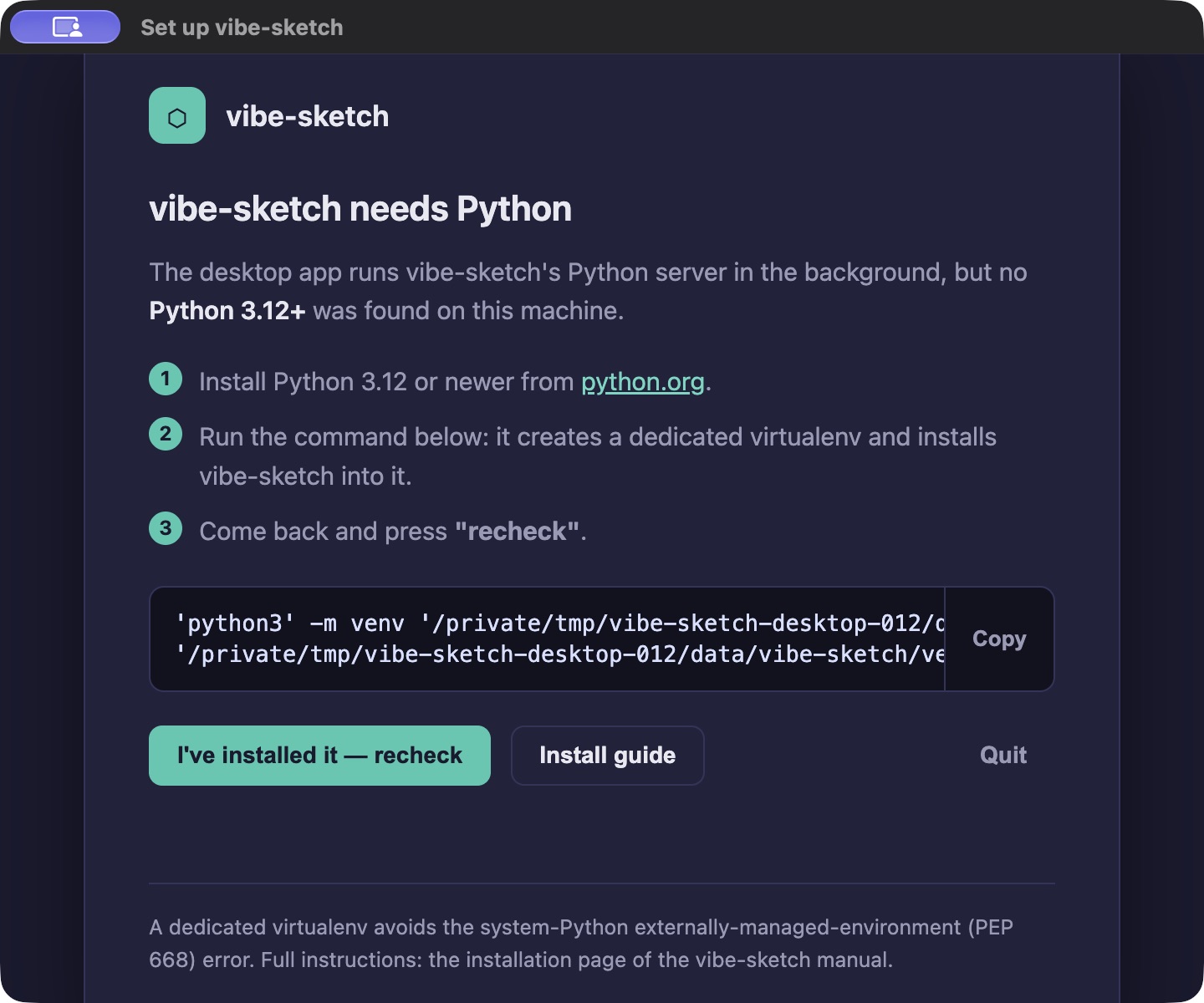
First-run setup from the 0.1.2 candidate. This capture uses an isolated tutorial location; your environment path will differ.
Copy the complete command with Copy, run it in your terminal and wait for installation to finish. Then select I’ve installed it — recheck. The command may be wider than the display; Copy includes the whole command. Install guide opens the instructions. The app keeps the setup workflow available while the required software is being installed.
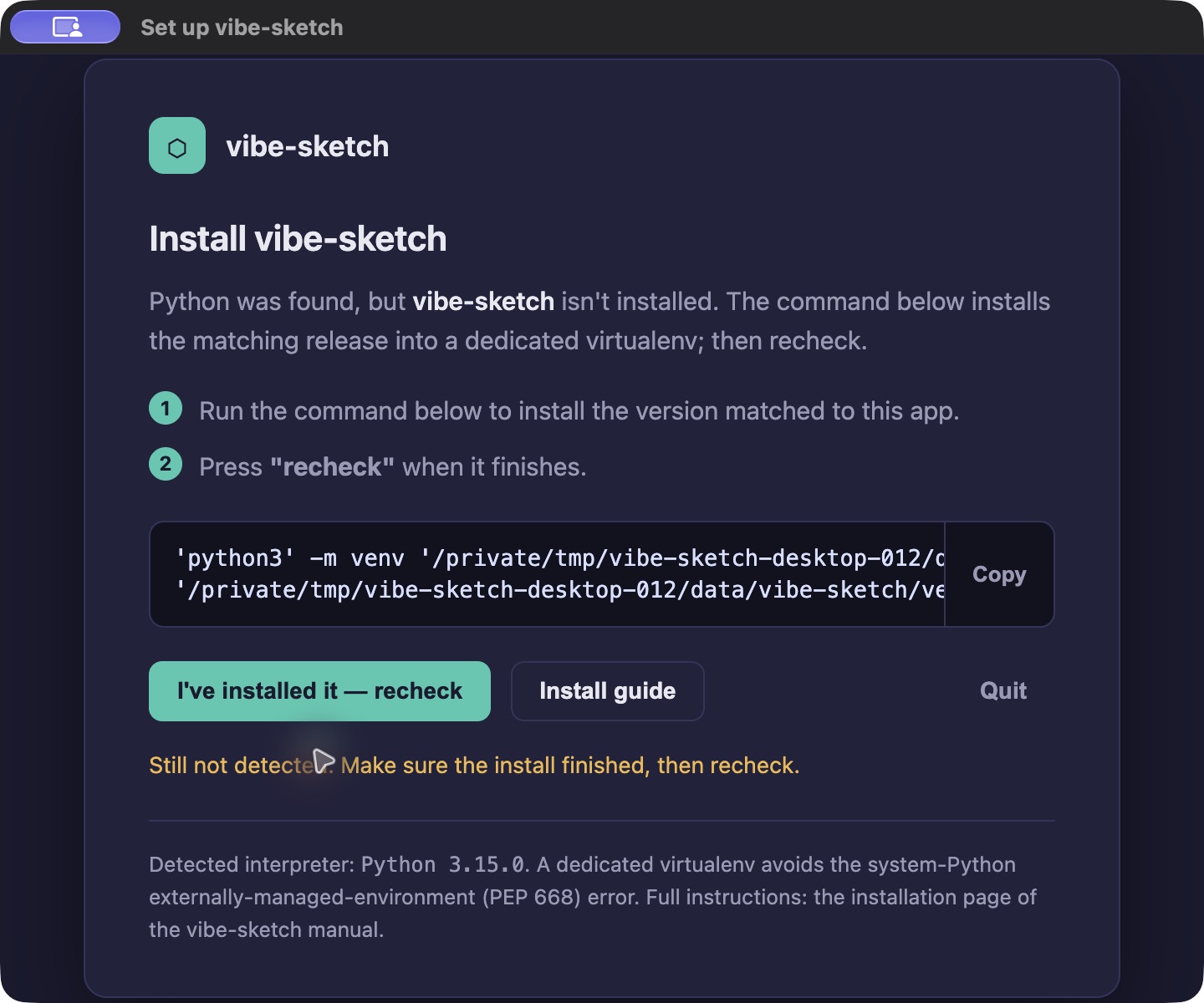
A successful Python check can still require the vibe-sketch package. Recheck reports the remaining requirement rather than opening an unusable editor.
For a source installation, activate its environment and run
vibe-sketch desktop diels-alder.vsk. scripts/install.sh --with-electron
installs the source launcher; scripts/update-desktop.sh updates it. Add
--dock during macOS source installation if you want the launcher pinned.
Packaged-app updates and source updates follow different paths; see the
reference before mixing them.
Open a named reaction
Download diels-alder.vsk. Use
File → Open, Open…, or drop the file on the window. On macOS, opening
a .vsk or .qvf with vibe-sketch or dropping it on the app’s Dock icon
uses the same import path. Open Recent reopens a previously accepted file.
Verify the filename, three species and reaction roles.
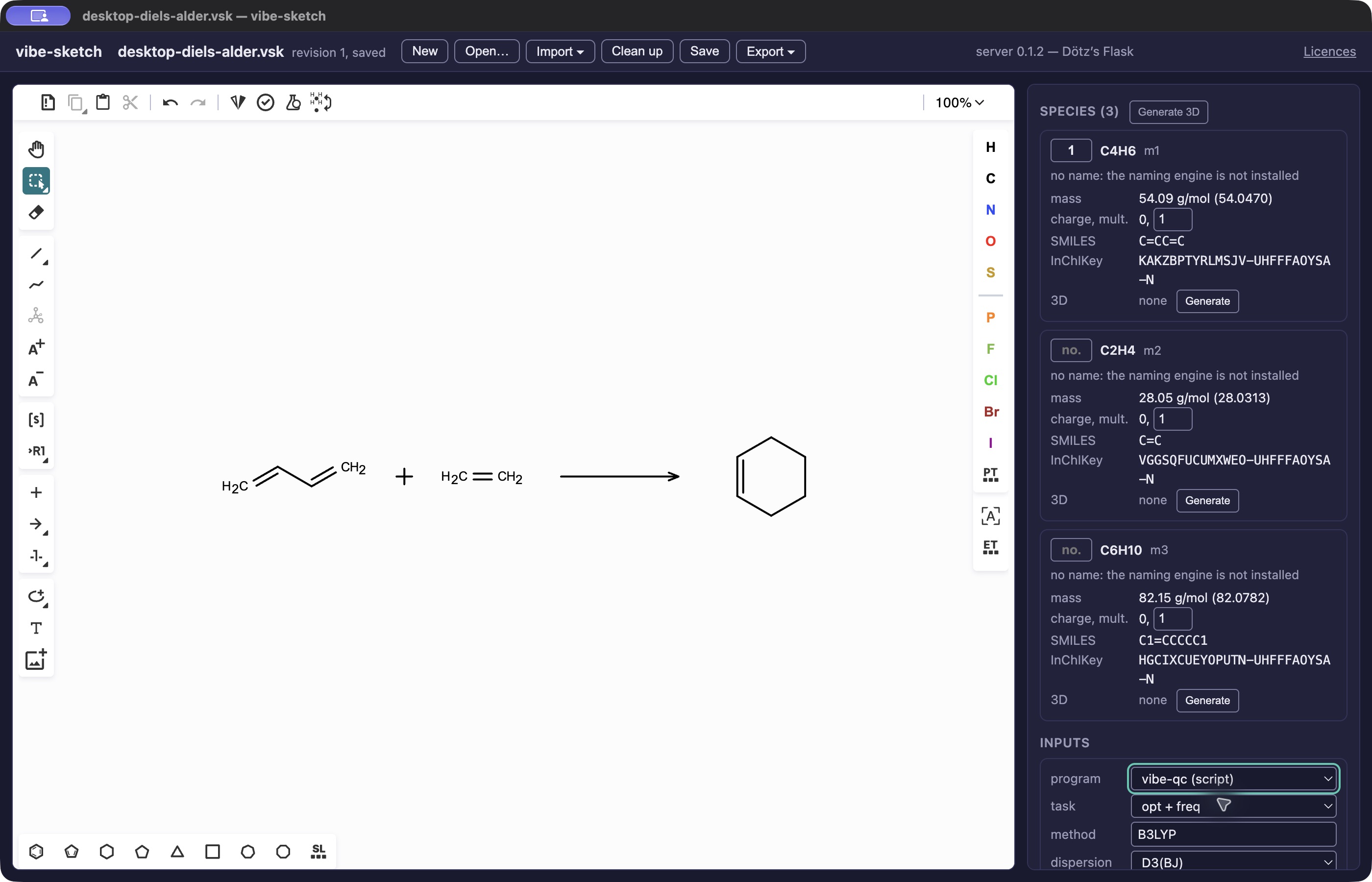
The native desktop after saving and reopening a separate example copy. The compound-number edit was checked in the saved VSK.
Edit a compound number, then press Ctrl/Cmd+S. A native sketch saves back to its destination; a new sketch asks for one. Use Save As to keep a separate variant. Reopen it and check the change. QVF and VSK preserve the whole document; MOL/SDF preserve only their supported information. Imported CDXML and XYZ require another save format.
Save a sketch copy of calculation results
Open a result QVF obtained from the vibe-qc queue tutorial. After an edit, Save opens Save Sketch Copy with a different suggested filename. Choose it, then reopen that copy. The original retains its calculation payloads. Cancelling keeps both the original and your unsaved edit; selecting the original again is refused. A symbolic link does not bypass the protection.
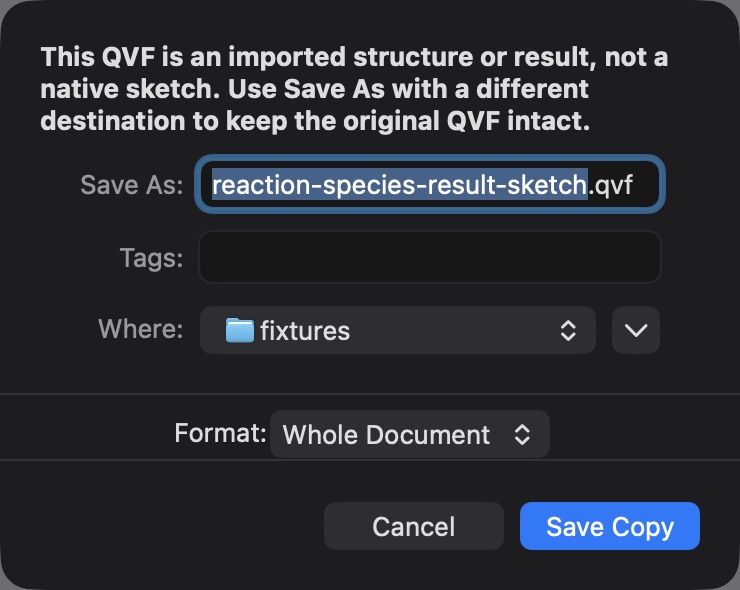
Saving the imported result opens this dialog automatically. Cancellation and saving a separate copy were checked; the original archive’s checksum stayed unchanged.
If a file changes outside the app, saving refuses to overwrite those new bytes. Reopen the changed file or use Save As. Before opening another document, resolve the prompt about unsaved changes. A failed export or cancelled dialog must not be treated as a completed save.
About, notices, updates and quitting
The native About dialog shows the version and its release codename. The approved corrected release is 0.1.2 — Dötz’s Flask. Names combine an organic chemist associated with a named reaction and laboratory equipment; see the catalogue.
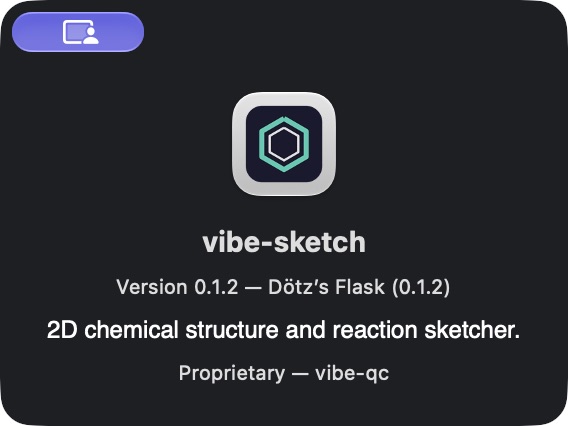
The version and codename in the packaged candidate’s About dialog.
Use the app’s Licences link/menu to read third-party notices and obtain the corresponding source archives. Use the desktop update action described in the desktop reference; macOS builds are ad-hoc signed and do not require an Apple developer account. Do not confuse a development build’s version with an available public update.
Closing a window and quitting the application are separate actions. Reopen through the Dock/tray when needed. Use the application Quit command to stop the managed backend as well. After restarting, use Open Recent to return to the saved example. The keyboard tutorial covers navigation inside the shared browser shell.