Draw a reaction, publish the figure and run it with vibe-qc
Draw cyclohexene + hydrogen → cyclohexane, save an editable sketch and a
vector image, then submit one calculation per species through vibe-queue
(vq) to vibe-qc. The drawings and screenshots below come from this
workflow in the actual app; all three example calculations completed.
You need an installed vibe-sketch for the drawing and image. The calculation section also needs vibe-queue available in the vibe-sketch Python environment and a working vibe-qc installation. The worked example uses vibe-queue 0.26.41 and vibe-qc 0.17.19. The walkthrough uses the browser so its server can inherit the queue settings from your terminal. The drawing tools are the same in the desktop app.
1. Draw the reaction
Start vibe-sketch serve --open. Save any current work, then click New.
Leave room for two reactants on the left, an arrow in the middle and the
product on the right.
Hover over the ring templates along the bottom of the canvas. Choose Cyclohexane (the plain six-membered ring) and click on the left.
Open the small triangle beside the bond tool on the left toolbar. Choose Double Bond and click one edge of the ring. This makes cyclohexene.
Choose Single Bond and drag in an empty space to the right of that ring. Select H on the right-hand atom palette and click each of the bond’s two visible endpoints. You should see H—H. Click the drawn endpoints, which may be closer together than the distance you dragged; clicking empty space would add a separate atom.
Choose Cyclohexane again and place the second ring on the far right.
Select Reaction Plus Tool (+) on the left and click between the first ring and H—H.
Select the forward arrow (→, labelled Arrow Open Angle Tool) and drag from left to right between H—H and the product ring. Keep both reactants to its left.
Select Add text (T), click above the arrow, type
Ni catalystin the Text Editor, and click Apply.Click Clean up in the top toolbar. Use Undo if a bond or atom was placed incorrectly, then check the drawing again.
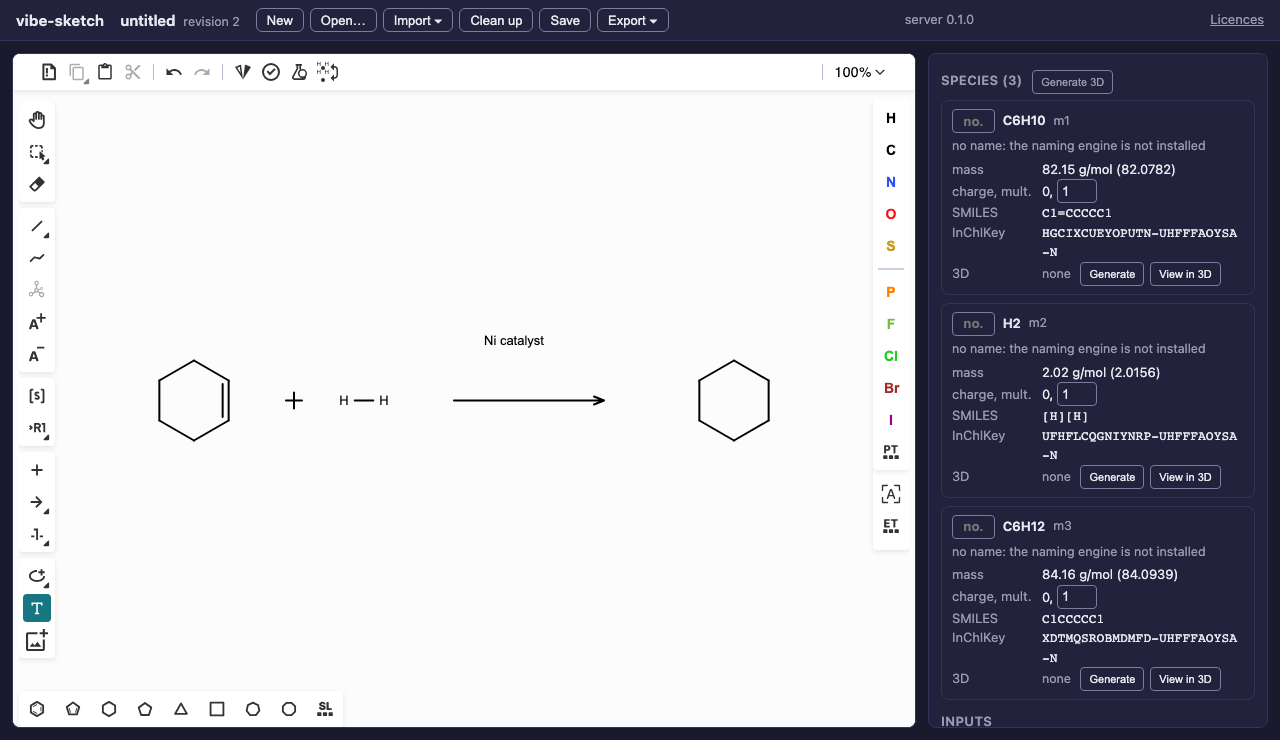
Draw the two rings, hydrogen molecule, plus, arrow and condition text.
Scroll through the properties panel and check:
Species |
Formula |
Charge |
Multiplicity |
Reaction role |
|---|---|---|---|---|
Cyclohexene |
C6H10 |
0 |
1 |
Reactant |
Hydrogen |
H2 |
0 |
1 |
Reactant |
Cyclohexane |
C6H12 |
0 |
1 |
Product |
There should be three species and one reaction. In Reactions, check
the two reactants, the product and Ni catalyst. Species ids such as m1
depend on editing history; identify each species by its formula and drawing.
The server interprets roles and condition text from their positions around
the arrow. Moving a molecule across the arrow can change its role.
The catalyst text is your annotation. It does not add nickel atoms to a calculation or ask the program to model a catalytic mechanism.
2. Save an editable master and a publication image
Click Save and keep the downloaded QVF or VSK as your editable master. For a ready-made starting point, download hydrogenation.vsk and use Open…. It contains the drawing and generated starting geometries, with no jobs or machine-specific run records.
Choose Export ▾ → SVG. Give the downloaded image a descriptive filename
such as hydrogenation.svg, then open it in your browser or manuscript
graphics application.

The actual SVG export. Download the vector file rather than taking a screenshot of the canvas for your manuscript.
Before inserting the image into a paper:
Check the cyclohexene double bond, H—H bond, product ring, plus sign, arrow direction and catalyst label against the editable drawing.
Inspect it at the size it will occupy in the manuscript. Make sure bonds and text remain legible, and preserve the aspect ratio when resizing.
Check the journal’s figure requirements. SVG is a vector image; if the journal requires another format, convert the saved SVG in your graphics application and inspect that conversion at the final size too.
The current exporter composes reaction components into rows, so the spacing and arrangement can differ from the canvas. Browser PNG export rasterizes the scheme SVG; server/CLI PNG remains limited to one structure. PDF and exact canvas-layout rendering are planned. This tutorial uses the supported SVG export and keeps the editable master separately.
3. Prepare a local queue
If your administrator already configured a local vq daemon and registered
the vibeqc program, check vq programs localhost --require vibeqc and
continue to the input settings. The sketcher’s current queue integration
submits to localhost.
For a self-contained first run, use a new tutorial directory and a separate queue configuration. Activate the environment containing vibe-sketch, then install vibe-queue from its checkout if needed; it is not on a package index:
python -m pip install /path/to/vibe-queue
vq --version
Use a new directory so this exercise has its own configuration, state and calculation files:
mkdir reaction-tutorial
cd reaction-tutorial
mkdir queue-config queue-state queue-scratch
cat > queue-env.sh <<'EOF'
export VQ_CONFIG_DIR="$PWD/queue-config"
export VQ_STATE_DIR="$PWD/queue-state"
export VQ_SCRATCH_DIR="$PWD/queue-scratch"
EOF
source queue-env.sh
In queue-config/config.toml, add the following, replacing the Python path
with the absolute path to the working vibe-qc environment’s interpreter.
Do not point at a bare system Python or just the vibe-qc source directory.
[programs.vibeqc]
kind = "import"
python = "/absolute/path/to/vibe-qc/.venv/bin/python"
import_check = "vibeqc"
Check the registration and start the daemon in this terminal:
vq programs localhost --require vibeqc
vq daemon run --max-cpus 1 --max-jobs 1 --max-mem-mb 4096
The program check must report OK. Leave the daemon running. It will execute the example jobs one at a time, with one CPU each.
Save your sketch and stop the earlier browser server with Ctrl-C in its
terminal. In another terminal, activate the same vibe-sketch environment,
change to reaction-tutorial, and run:
source queue-env.sh
vibe-sketch serve --open
Use Open… to reopen your saved sketch. The server, daemon and queue commands must all use these same environment settings. Launching an app from the Dock does not inherit this terminal’s temporary queue configuration. Keep this tutorial directory until you have retrieved the results.
4. Generate geometries and inspect the inputs
Click Generate 3D. Check the atom counts in the species cards: 16 for cyclohexene, 2 for H2, and 18 for cyclohexane. These are starting geometries from distance geometry and force-field relaxation. They have not undergone quantum-chemical optimization.
Scroll to Inputs and set every field explicitly:
Field |
Value |
|---|---|
program |
vibe-qc (script) |
task |
single point |
method |
B3LYP |
dispersion |
none |
basis |
def2-SVP |
RI |
none |
solvent |
gas phase |
processes |
1 |
species |
C6H10, H2 and C6H12 all checked |
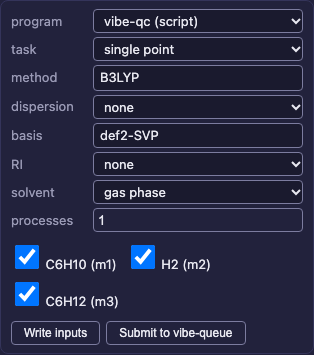
The same specification is applied to each selected species.
Click Write inputs first. With three species selected, you receive a ZIP
containing three Python files. Extract and inspect them: each uses
from vibeqc import Atom, Molecule, run_job, charge 0, multiplicity 1,
functional="b3lyp", basis="def2-svp" and output_qvf=True.
Their geometry lists contain 16, 2 and 18 atoms respectively. The writer
converts its stored angstrom coordinates to bohr for vibe-qc.
This B3LYP/def2-SVP single-point example demonstrates the workflow. Choosing a suitable method, optimizing geometries and establishing convergence for a research question are separate scientific steps. The three energies alone are not a reaction barrier or a thermal free energy of reaction.
5. Submit, follow and retrieve the calculations
Click Submit to vibe-queue once. Three entries appear under Calculations, progressing from pending to running to completed (0). Zero is the successful process exit code. The one-job daemon runs the species sequentially; elapsed time depends on your computer.
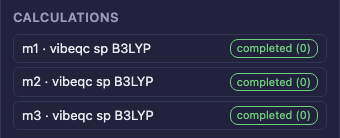
All three jobs completed in the example run.
If Submit is disabled, inspect its hint. Check that the daemon is running,
that the server uses the same queue configuration, and that vibeqc passes
the program check. After correcting the environment, save and restart the
server. If a job fails, inspect its status and output before resubmitting.
Clicking Submit again creates additional runs.
Save again after submission, retaining the downloaded file containing the job and run records. In a terminal with the same queue environment, pass that actual filename to:
vibe-sketch runs hydrogenation.qvf
Use .vsk instead if that is what you saved. The report lists each run id,
job, species and state. Replace RUN_ID below with one of those ids:
vq status localhost RUN_ID
vq progress localhost RUN_ID
vq fetch localhost RUN_ID --workspace -o results
Repeat the fetch for the other two ids. Use --workspace: these generated
scripts write their calculation outputs in the job workspace. The separate
--workdir location can contain only queue diagnostics for this workflow.
Each fetched directory includes the submitted Python script, a calculation
.out file and a result .qvf, plus supporting outputs. Read the output to
check convergence, method, charge, multiplicity and geometry. Use vibe-view
for detailed result inspection. Opening the result QVF in vibe-sketch
recovers its structure; edit it with Save As to a different file to keep
the original calculation payloads intact.
These are three independent species jobs. Reaction grouping, barrier searches and automatic reaction-energy annotations are separate planned capabilities. After all jobs finish and results are fetched, stop this exercise’s foreground daemon and server with Ctrl-C in their respective terminals.
Command-line equivalent
This is an alternative to the browser submission above. In the same
reaction-tutorial directory, download a fresh copy of the pristine
hydrogenation.vsk as
hydrogenation-cli.vsk. Keep any document with existing runs separately.
Start the daemon if you stopped it, and source queue-env.sh in your command
terminal. Export and prepare files without submitting anything:
vibe-sketch render hydrogenation-cli.vsk -o hydrogenation-cli.svg
vibe-sketch input hydrogenation-cli.vsk --all --program vibeqc \
  --task sp --method B3LYP --basis def2-SVP --nprocs 1 \
  --embed --output-dir inputs
Inspect the three scripts, then submit once:
vibe-sketch submit hydrogenation-cli.vsk --all --program vibeqc \
  --task sp --method B3LYP --basis def2-SVP --nprocs 1
vibe-sketch runs hydrogenation-cli.vsk
vibe-sketch submit sends the jobs through vq and saves their run records
back into hydrogenation-cli.vsk. Follow and fetch them with the same vq
commands above. You can select individual species using repeated
--species ID options instead of --all.
To submit an already inspected script directly with the queue CLI instead, use the Python path registered above and the script’s actual filename:
vq submit localhost --python /absolute/path/to/vibe-qc/.venv/bin/python \
  --cpus 1 inputs/m2_b3lyp_def2-svp.py
That command returns a queue run id. Direct vq submission does not update
the sketch’s job records; keep the returned id for status and retrieval.
Choose this route or the sketcher’s Submit action for a given calculation
to avoid submitting it twice.